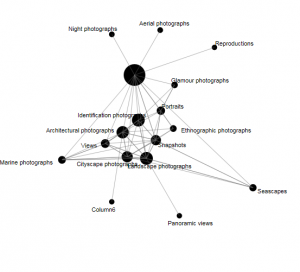
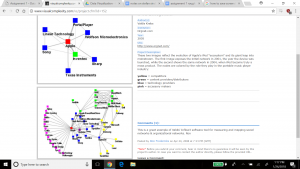
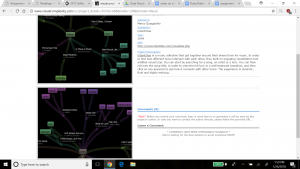
As Paranyushkin observes, the ability to visualize relationships between multiple dimensions of data “unlocks the potentialities present” by seeing data in “a non-linear fashion, opening it up for interpretations that are not so readily available” (Paranyushkin 2011). Gephi, a network analysis and visualization tool, is invaluable in helping researchers generate detailed network graphs and metrics that may otherwise remain hidden in data or text. By manipulating different options within Gephi, a variety of relationship maps can be created which emphasize different aspects of the relationships within the data. This flexibility opens the door for researchers to explore new meanings and interpretations of the data.
The process my partner (Katie) and I took to learn about Gephi included viewing video tutorials found on the Gephi website (https://gephi.org/) and reading the training collateral that walks users through ‘starter’ projects from beginning to end (e.g., http://www.martingrandjean.ch/gephi-introduction/). These seem helpful for novice users like ourselves, though Gephi is an advanced tool which we feel expects users to be acquainted with the concept and metrics behind network graphs as a prerequisite. Although, I believe it is important to state that even with the help of these tutorials, I sometimes could not get Gephi to work properly on my computer. Luckily, my partner Katie’s laptop was capable of acquiring the visualizations we wanted. (Therefore, most of these screenshots come from her laptop).
Once we were comfortable enough to begin the process of using Gephi, we built the nodes and edges data, which is the cornerstone for driving graphs and statistical metrics within the application. The data used for this project consisted of a subset of records produced by the 18th century Moravian missionary on Native Americans being baptized in the Mid-Atlantic states (each missionary, as part of their spread of Christianity, wrote down key data on each person baptized including names, where, when, location, family relations). For our edge data, we focused solely on the family relationships within the baptized Native Americans. The process of building the edge data was time consuming, because it involved reviewing records and creating links manually. Once this was completed and loaded into Gephi’s Data Laboratory, a network graph was immediately produced, below.
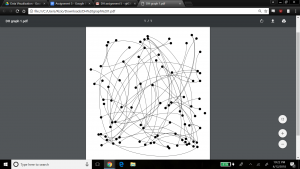
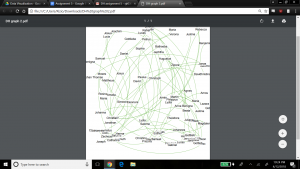
As the Gephi training modules explain, this initial graph is meant to show only a basic network model, and at this point it is up to researchers to explore relationships in more detail and variety using the power of Gephi’s visualization options. As a first step, we chose to produce a view that overlays the node labels onto the graph so that the context about what the graph represents is shown, and colored the edges to present a different aesthetic, below.
For the next view, we expose another dimension of the data by including the ‘nation’ property. This view helps visualize if any one nation was more likely than others to have family members baptized together (rather than individually). This would help explore the importance of close family in the spread of Christianity across the Native American nations. Katie and I made the nation visible by selecting the ‘partition’ option under the ‘appearance’ widget, and selected ‘nation’ as the attribute to color, with the result below.
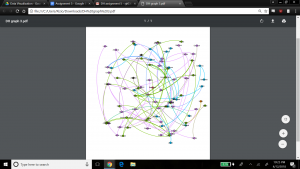
The edges in the graph are now colored by nation – the top 3 nations represented by the family relationships in the graph are Wampanog (41.6%, purple), Delaware (31.5%, green) and Mahican (20.2%, blue) – which together represent 93.3% of the total population in my dataset. This would indicate that family is an important aspect to the spread of Christianity at the time.
To spatialize the network, different layouts are possible within Gephi. The ForceAtlas 2 layout makes communities within the network transparent by bringing closer together nodes that are connected, and pushing out unconnected nodes. The result is below.
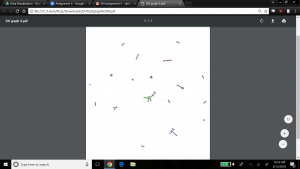
This graph is interesting because it clearly shows small pockets of members grouped together in family units, with little connection between them. This might not appear to be a good sample of a network model with many relationships. However, I believe this visualization might well be expected from the data, since the data focuses on family relationships between the people who were baptized in my dataset. Selecting the Force Atlas layout presents a nicer aesthetic I believe, as shown below, to see the groups of families who were baptized, and how these families have little to no family relationship to each other.
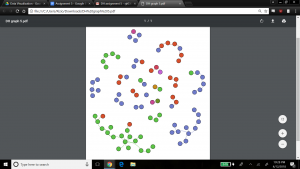
We kept the ‘nation’ aspect colored in this visualization, which indicates that most families are made up of members from the same nation, but interestingly there are a few families with members from different nations. Perhaps this shows that baptizing helped bring more people across nations together, or that families who already were made up of members from different nations were more inclined to be baptized.
Next, we explored the statistical metrics embedded within my data – degree, modularity, and betweenness. In our dataset, there are 89 nodes and 70 edges. Degree is a measure of how many edges a node contains, which explains its connectedness to other nodes in the dataset. We wanted to visualize the nodes scaled to their degree – that is, the nodes with most relations would be the largest. To do this, we kept the layout as Force Atlas, selected the ‘nodes’ tab under the ‘appearance’ widget, and selected ‘ranking’ to be ‘Degree’. We entered a large range for scaling the nodes to emphasize results (since we expected most families to be somewhat of the same size) – min size was 5, max size was 200. The result is below.
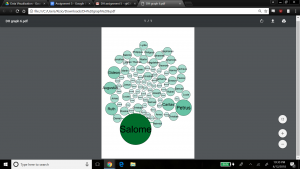
Salome has the highest degree which means she has the most family members connected to her, followed by Petrus, Caritas, Ruth, Augustus and Gideon. We also ran the Average Degree report in the ‘Statistical’ tab, which produced a value of 1.57. This would indicate that my dataset contains mainly small family groups on average, or larger families balanced by a fair number of individuals with no family connection. If we refer back to graph 4, which shows clear communities of small families, that could lead us to believe the network contains mainly groups of small-sized families.
The next metric is modularity which shows the community structure within the network. Nodes connected together, rather than with the rest of the network, are viewed as being in the same community. Regarding modularity, Paranyushkin states that a modularity measure greater than 0.4 indicates that the partition produced by the modularity algorithm can be used in order to detect distinct communities within the network. It indicates that there are nodes in the network that are more densely connected between each other than with the rest of the network, and that their density is noticeably higher than the graph’s average (Paranyushkin 2011). For this statistical calculation, we ran the ‘modularity’ report which showed a modularity value of .9, and number of communities equal to 21. Confirming Paranyushkin’s view, this network, with a modularity value of .9 (which is greater than .4) does contain distinct communities (a total of 21 according to Gephi’s count) within the network as I previously noted based on the visualization in my fourth and fifth graphs. The graph below visualizes my network’s modularity and was produced by ranking on ‘modularity class’ in the ‘appearance’ widget, using the ForceAtlas2 layout.
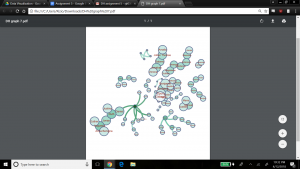
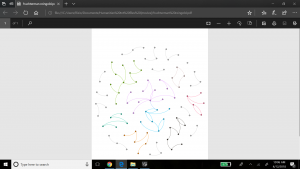
In terms of comparing different ways to view modularity, below represents another community visualization, this one produced by selecting the Fruchterman Reingold layout, which seems ‘prettier’ than graph 7.
The last metric we revealed in Gephi is the betweenness calculation. Betweenness indicates how often a node appears on the shortest path between any two random nodes in the network. The higher the betweenness value, the more central or important the node is of being a connector for the entire network graph. Gephi calculates the betweenness centrality measure under ‘Network Diameter’ option in the Statistical tab. Gephi indicated that my graph has a Network Diameter of 8. To visualize the betweenness centrality, Gephi enables node resizing according to their betweenness value – the more central the node, the bigger its size. For this view we used the Force Atlas layout, and selected min size of 10 and max size of 100 for scaling the Betweenness Centrality metric. The result is below.
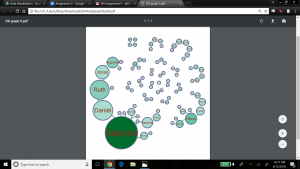
We also chose to add the betweenness values as label attributes for the nodes so we could read the actual measures Gephi calculated – Salome was the largest node with a betweenness value of 127, and Theodora (and others) had the smallest betweenness value of zero.
In terms of what did not work well within Gephi, I would say there are areas of maturity problems that linger in the tool. For example, there were times when the application lost my work and I had to restart. In another case, I mistakenly removed the ‘Layout’ widget and it took Katie and I quite some research to figure out how to reinstate it. However, on the whole, these glitches could be overlooked because Gephi is quite powerful. I found the relative ease with which graphs could be produced, along with their associated key metrics, most compelling. With a few clicks, we were able to visualize our data in new ways we would not have been able to do before. This kind of tool offers researchers the ability to quickly identify new connections or ideas hidden in data that may open up the door for different research paths. As Paranyushking describes, unlocking new meanings within data becomes possible with a network visualization tool like Gephi because “it allows the text to speak in its multiplicity”.
Works Cited
Paranyushkin, Dmitry. Identifying the Pathways for Meaning Circulation using Text Network
Analysis. Nodus Labs, Berlin. October 2011.